Ocean Color Download for a Specific Area and Period [2024.09.28]
How to extract only the region and period you need from NASA Ocean Color Level 3 and 4 products (Chl-a and others). The extraction runs on the server, so downloads are much faster than fetching global files.
Earthdata account
Register on NASA Earthdata before you start. Earthdata is used again and again when downloading ocean data, so it is worth creating an account now if you do not have one.
- Open NASA Ocean Color.
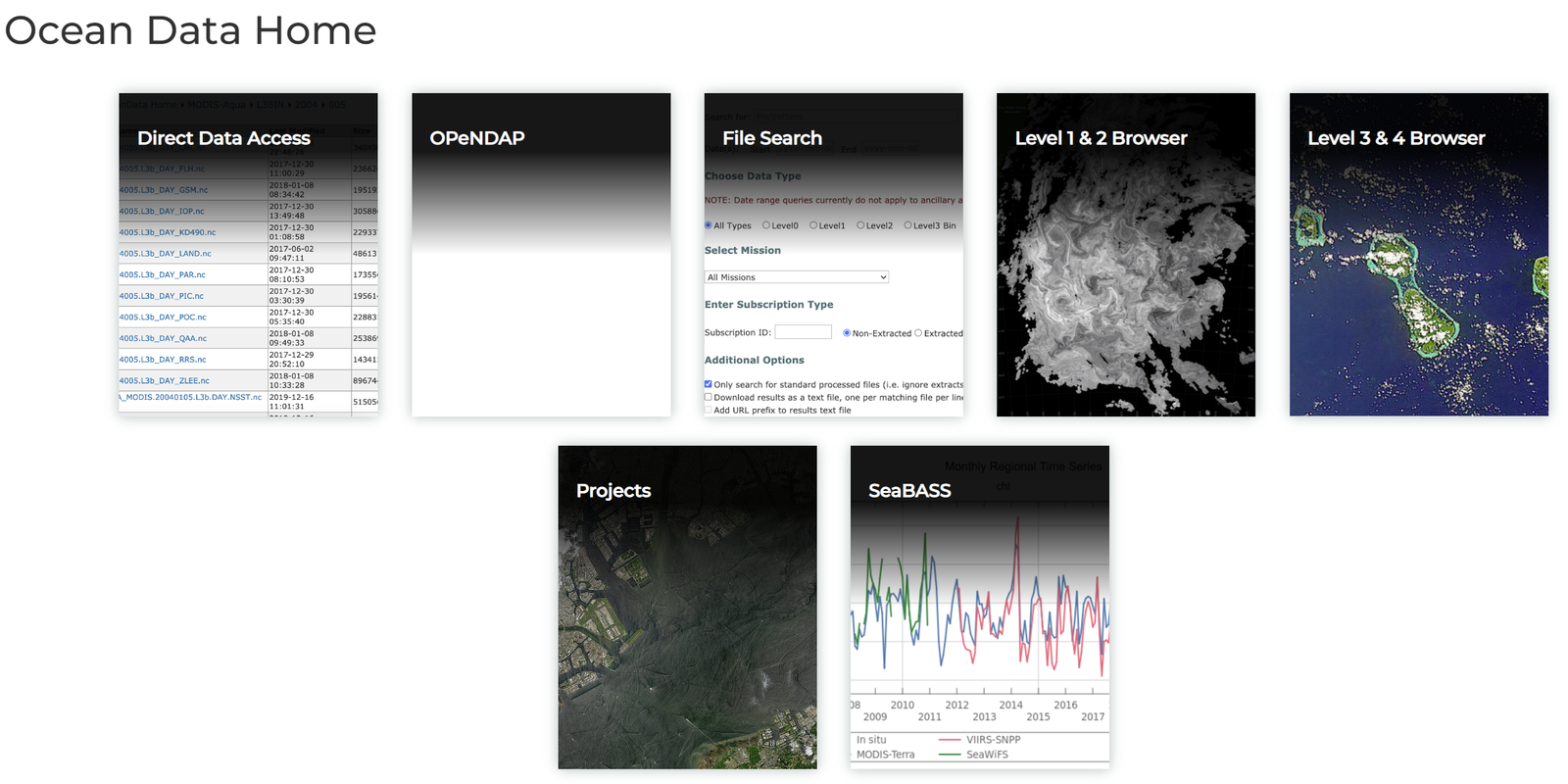
NASA Ocean Color data site - Click
Level 3 & 4 Browser.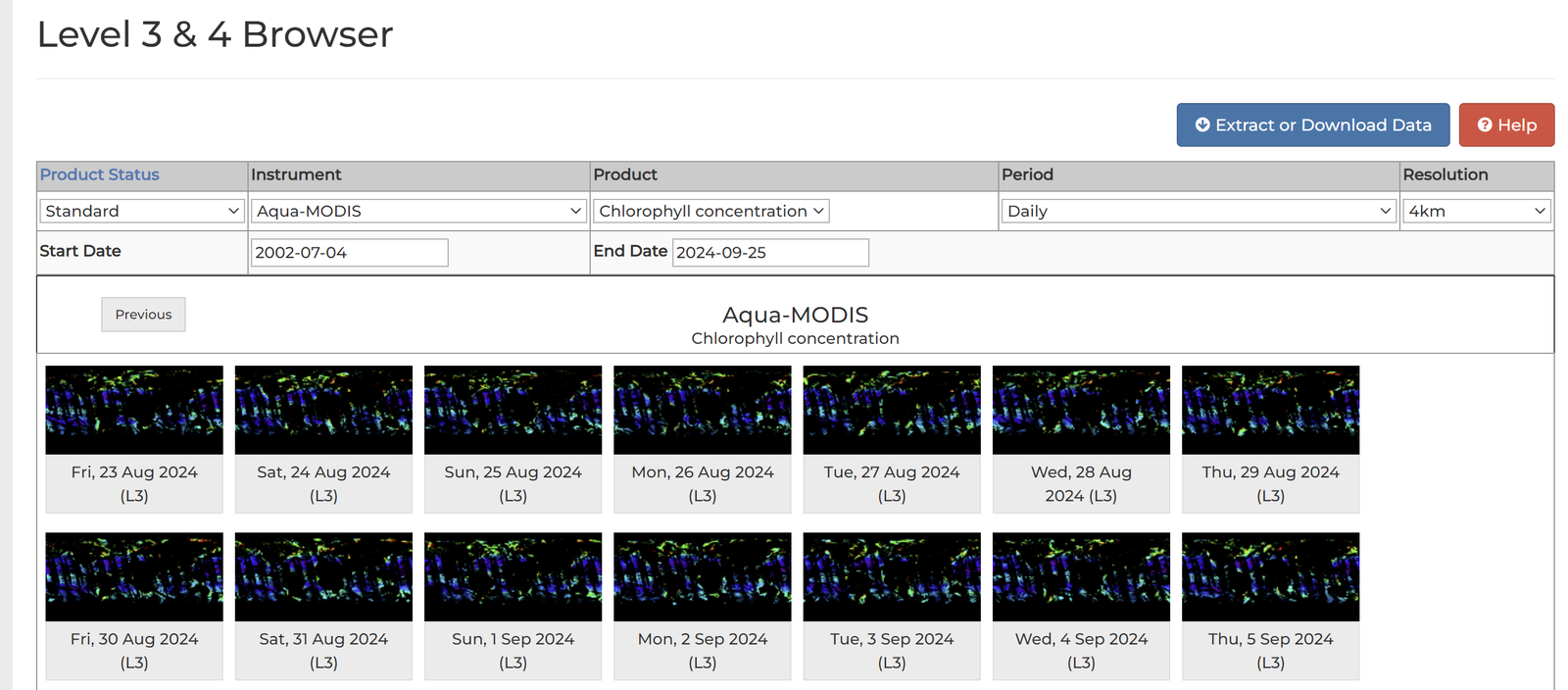
Level 3 & 4 Browser - Choose the product, period and resolution. The example uses Chl-a, monthly, 4 km. Then click the blue
Extract or download databutton at the top right.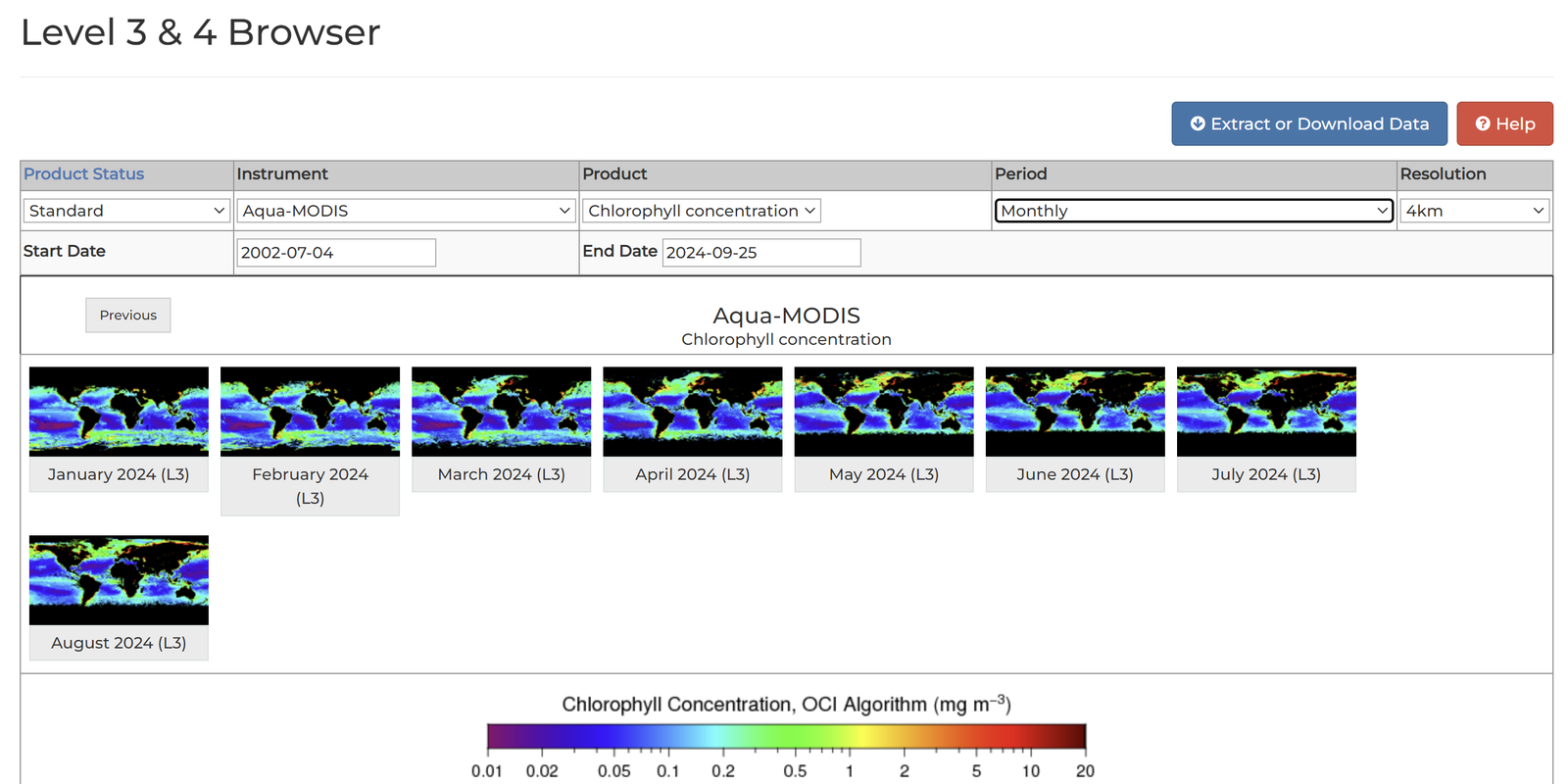
Selecting product, period and resolution - Under Type choose
Mapped, and under Data Retrieval Method chooseExtractrather than download. You can then select the region.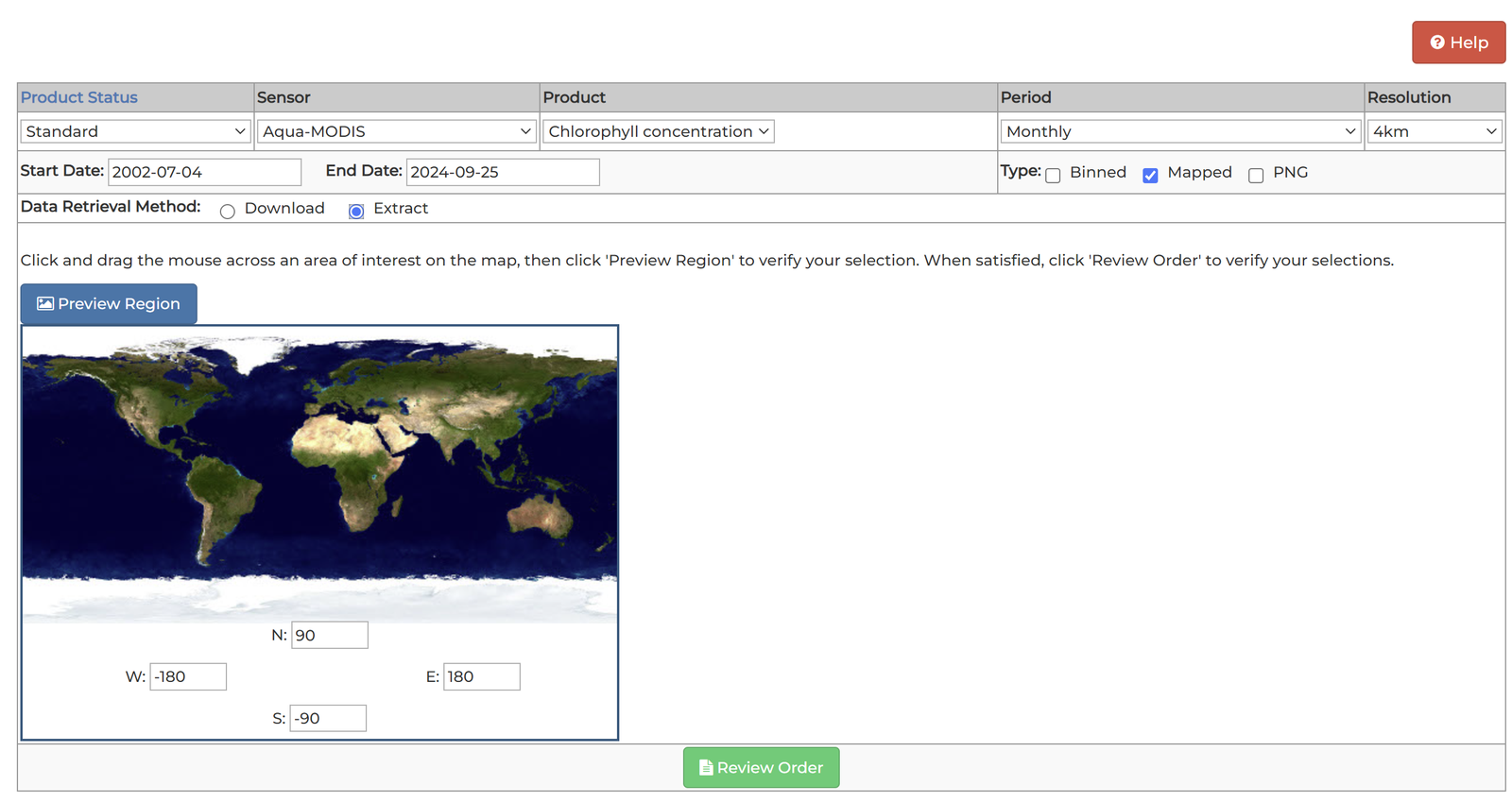
Type: Mapped, Data Retrieval Method: Extract - The example selects the East China Sea. Check the options and click
Extractat the bottom.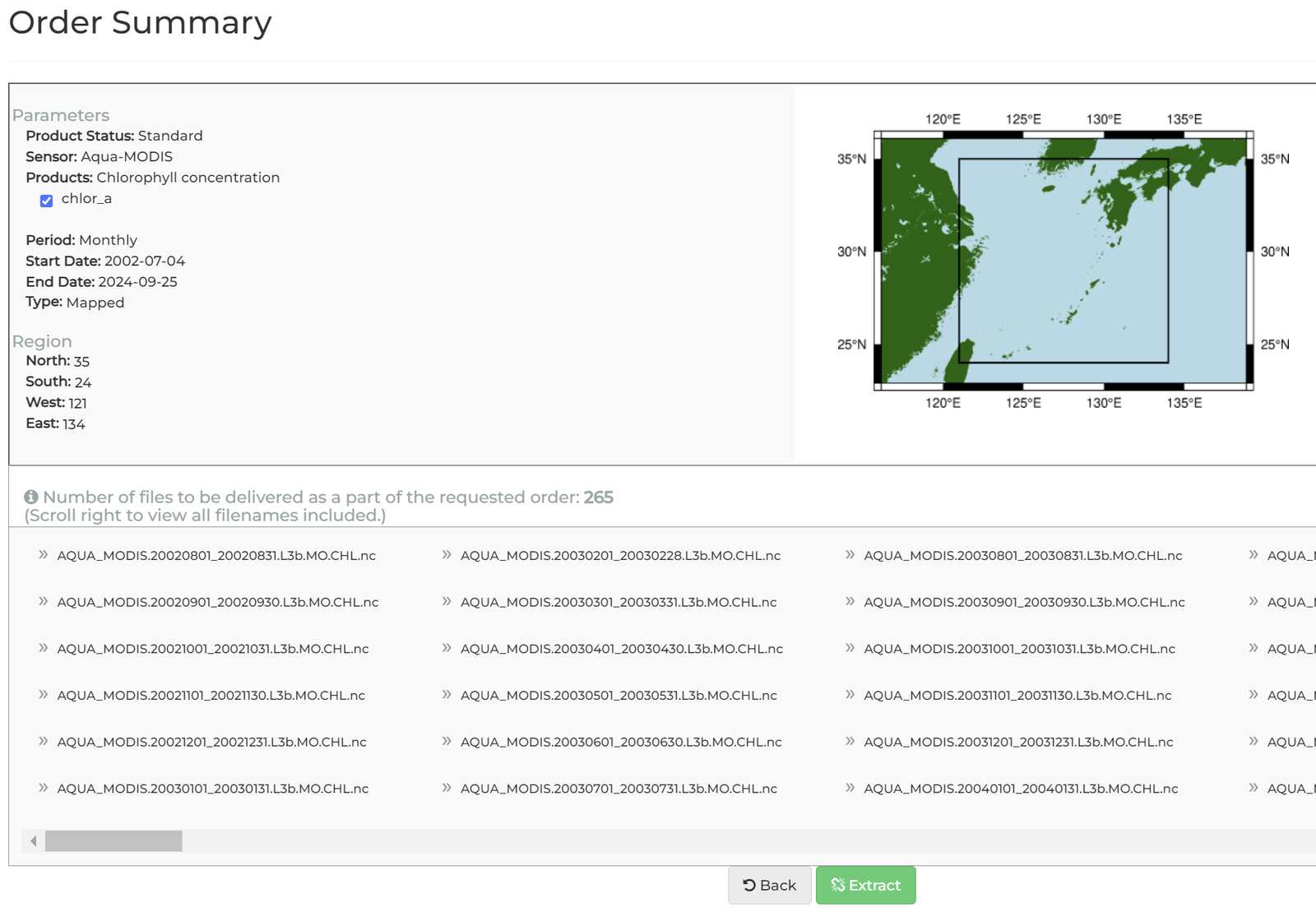
Selecting the East China Sea - The following screen appears. If you have an Earthdata account, follow the first link.
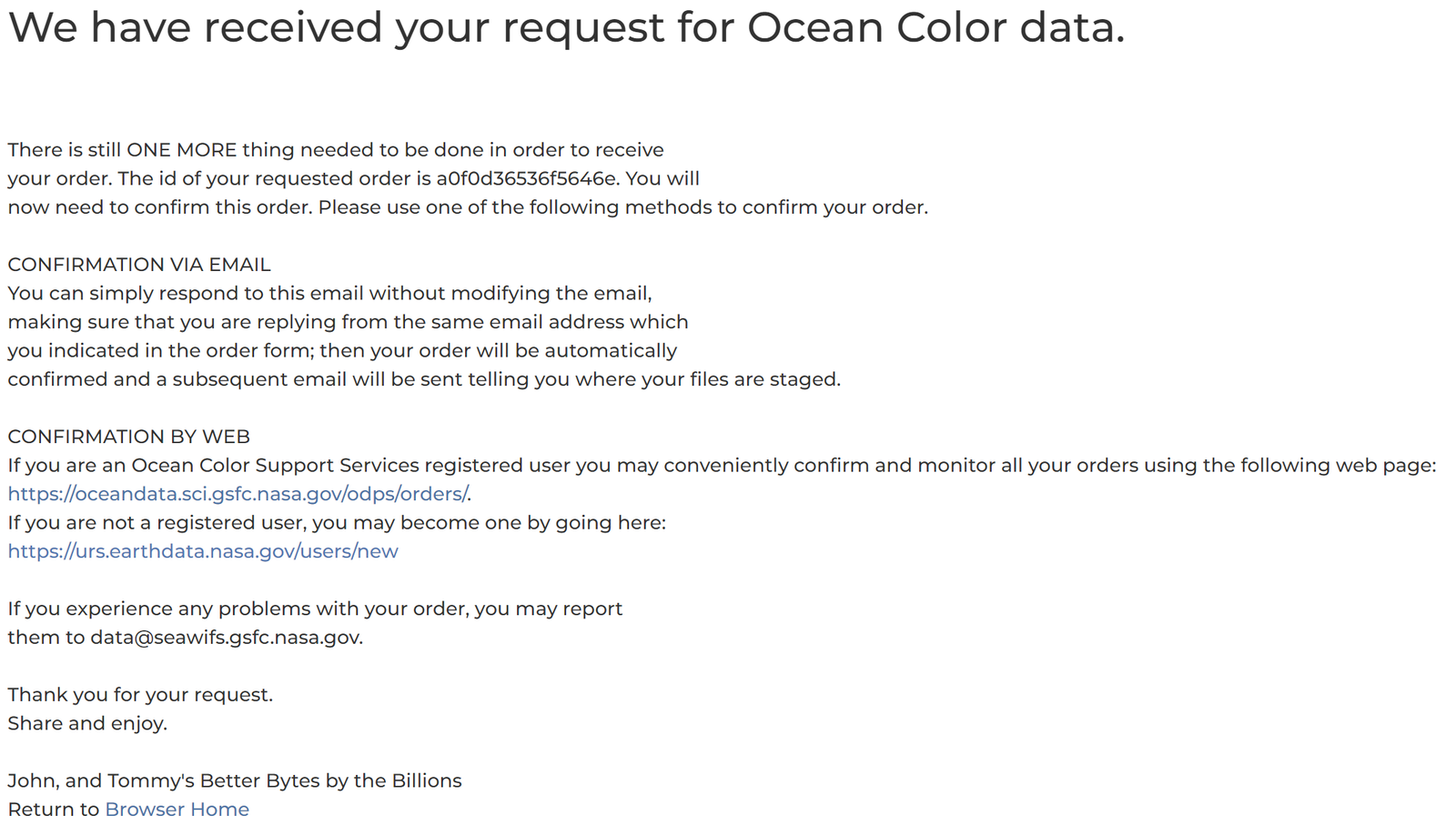
Order confirmation links - Click
Confirm(not Cancel).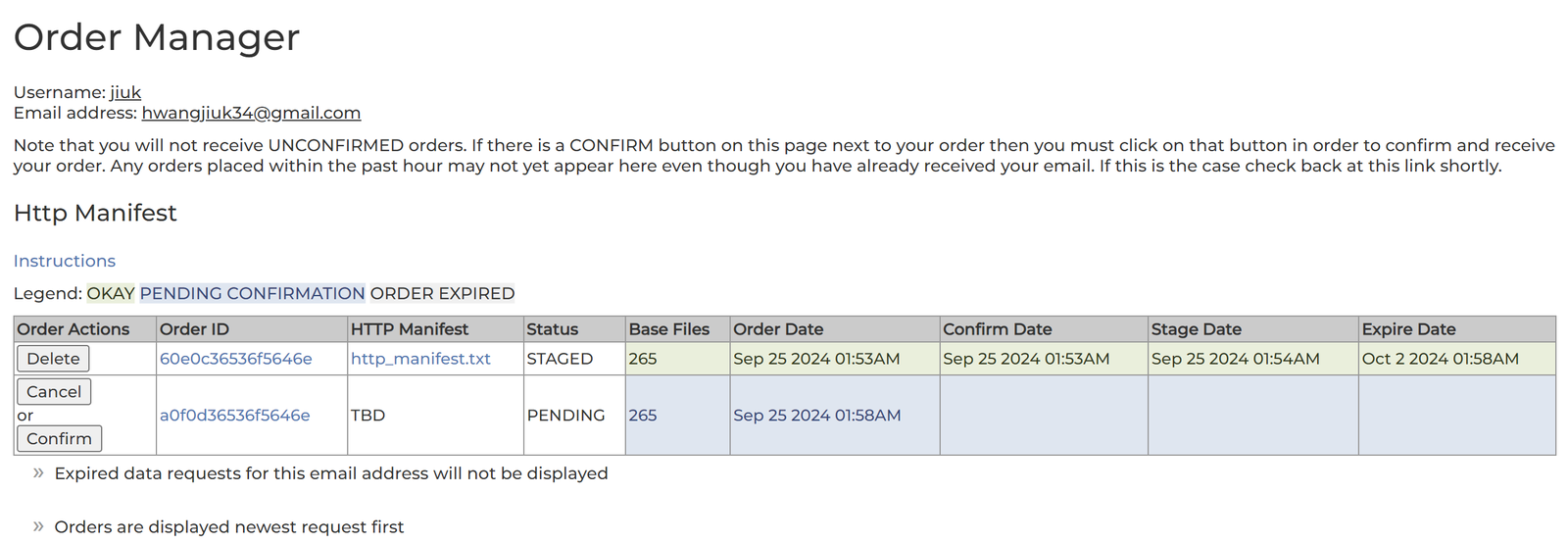
Confirm the order - A confirmation e-mail arrives as well.
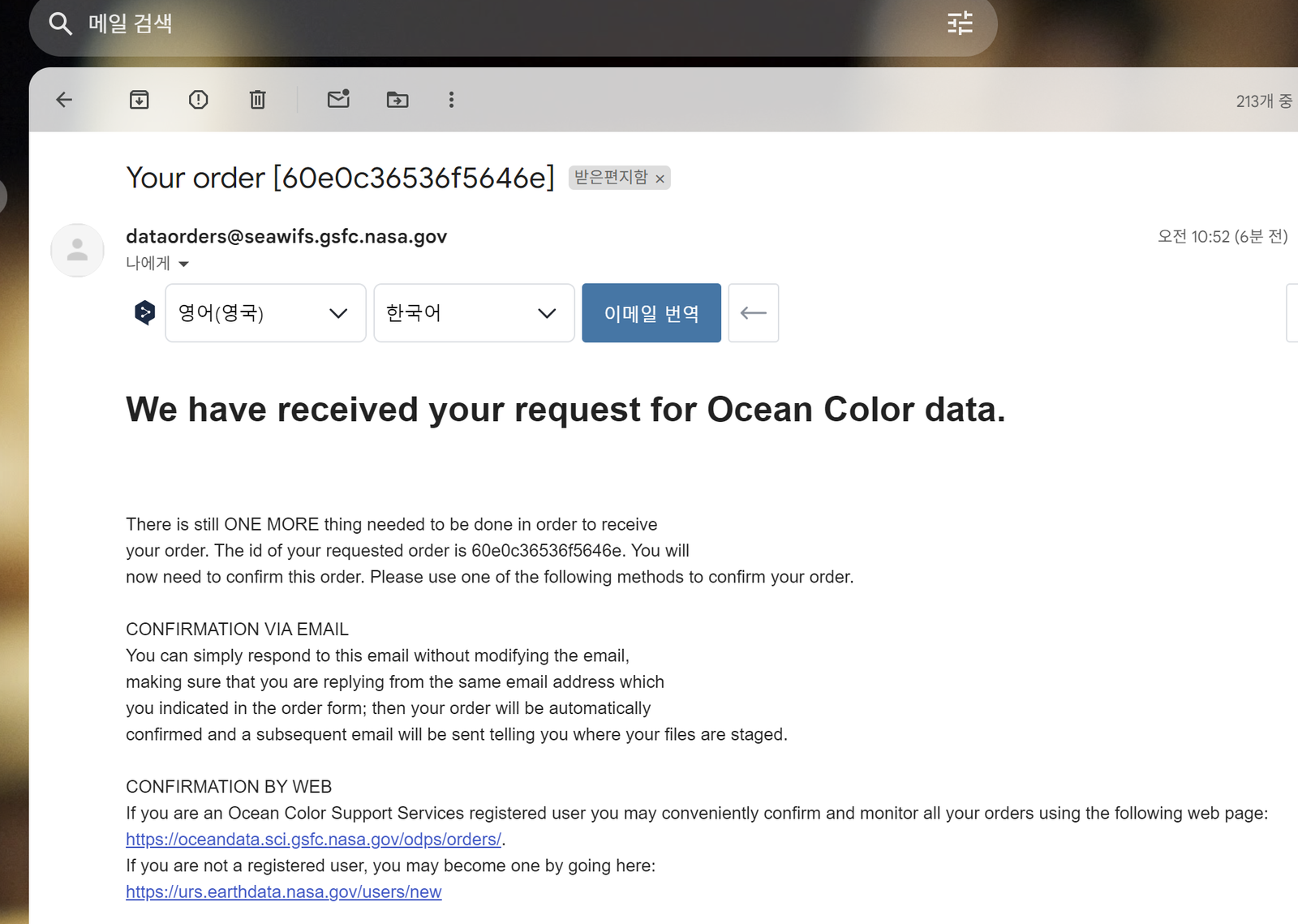
Confirmation e-mail - A short while after confirming, a second e-mail arrives. This one contains the download links.
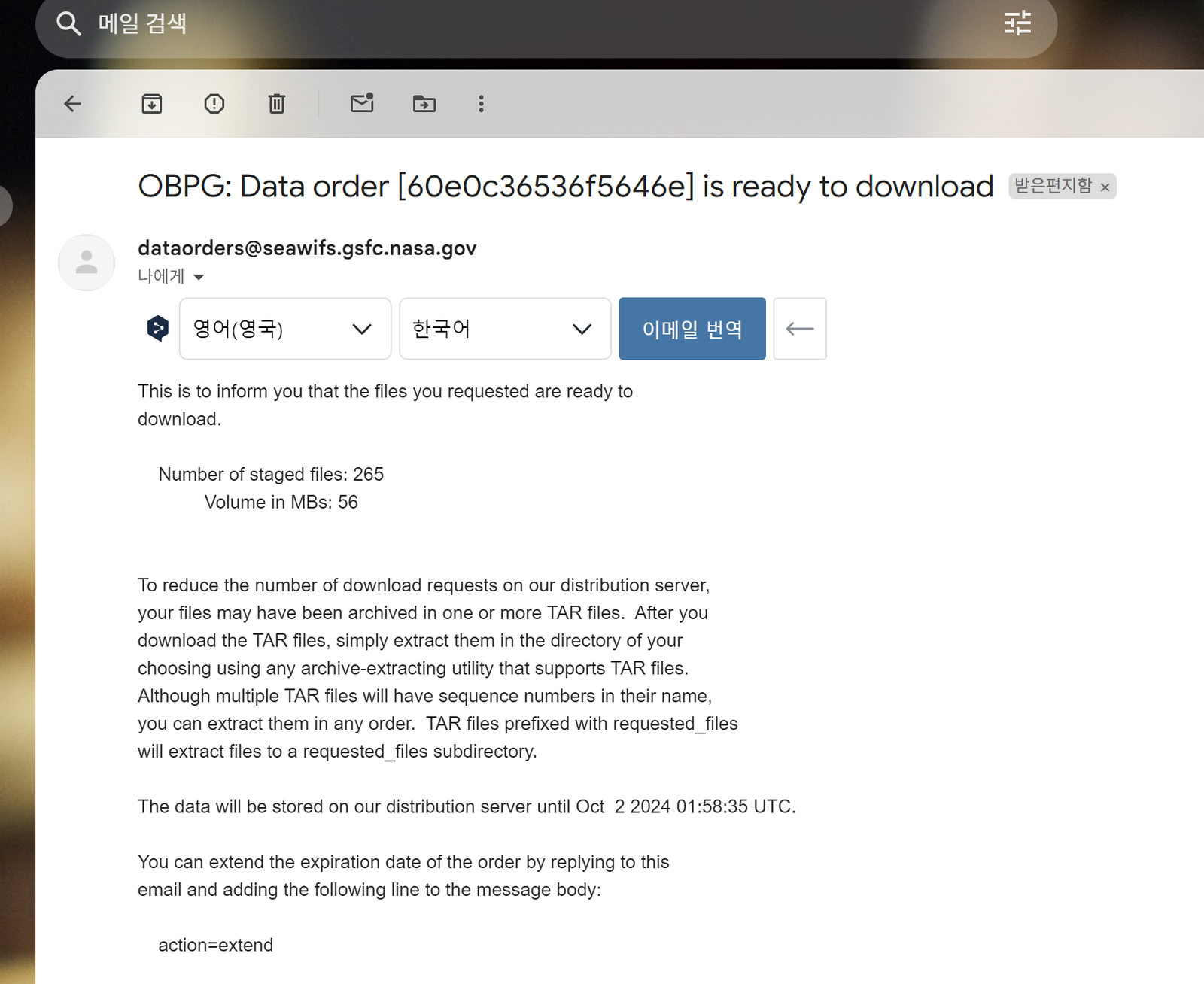
Download e-mail 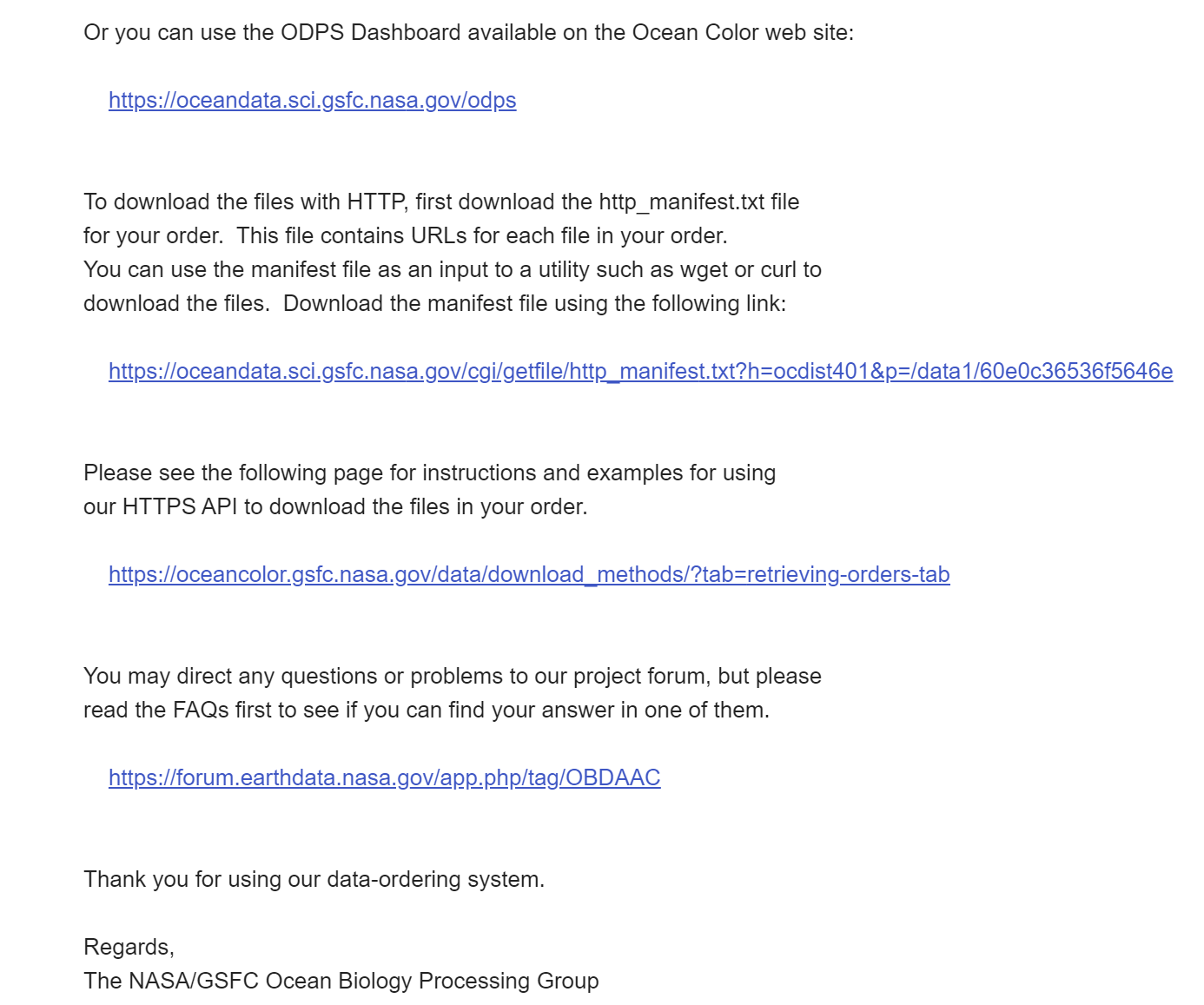
Download e-mail, links - Click the HTTP download link (the second hyperlink in the left image). A TXT file with the file URLs is downloaded.
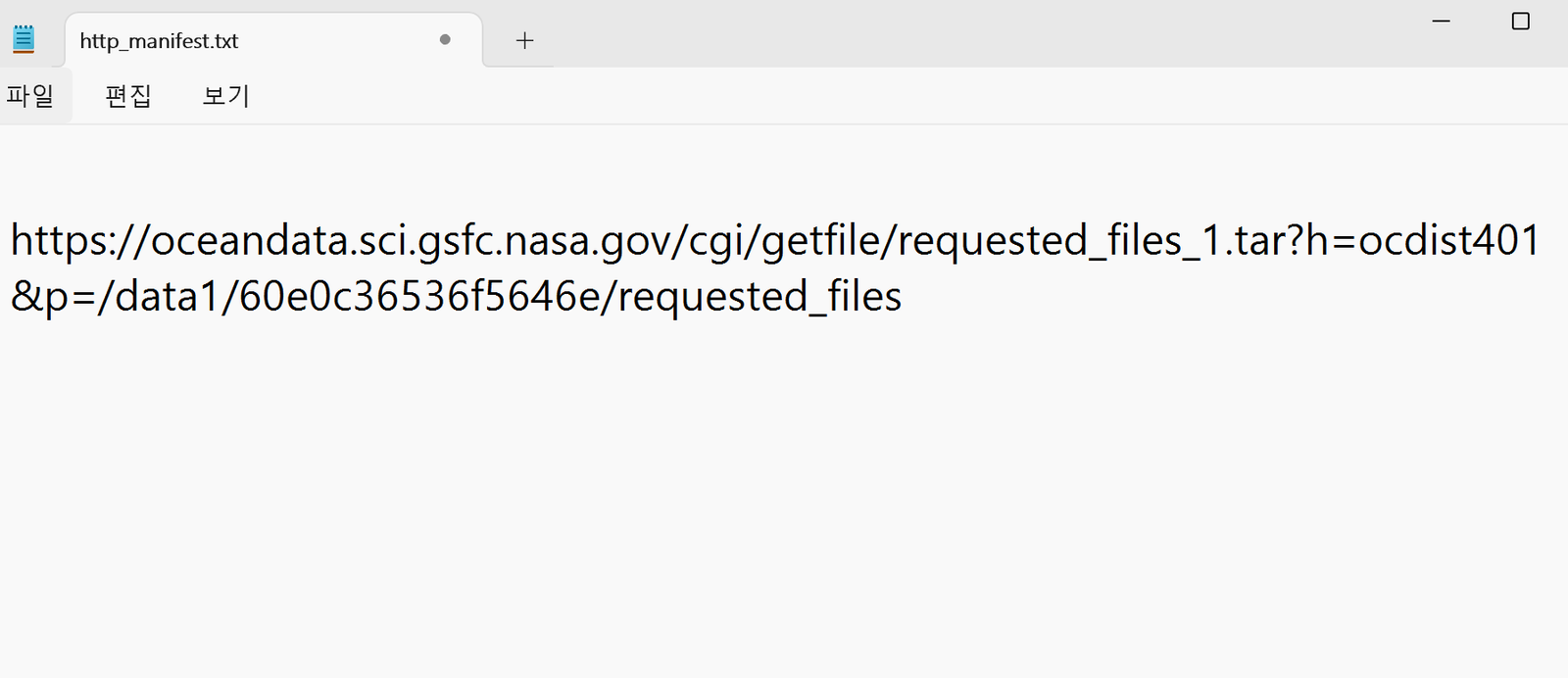
TXT file with download URLs - Paste a URL from the TXT file into the address bar of a browser such as Chrome. The data file is downloaded.
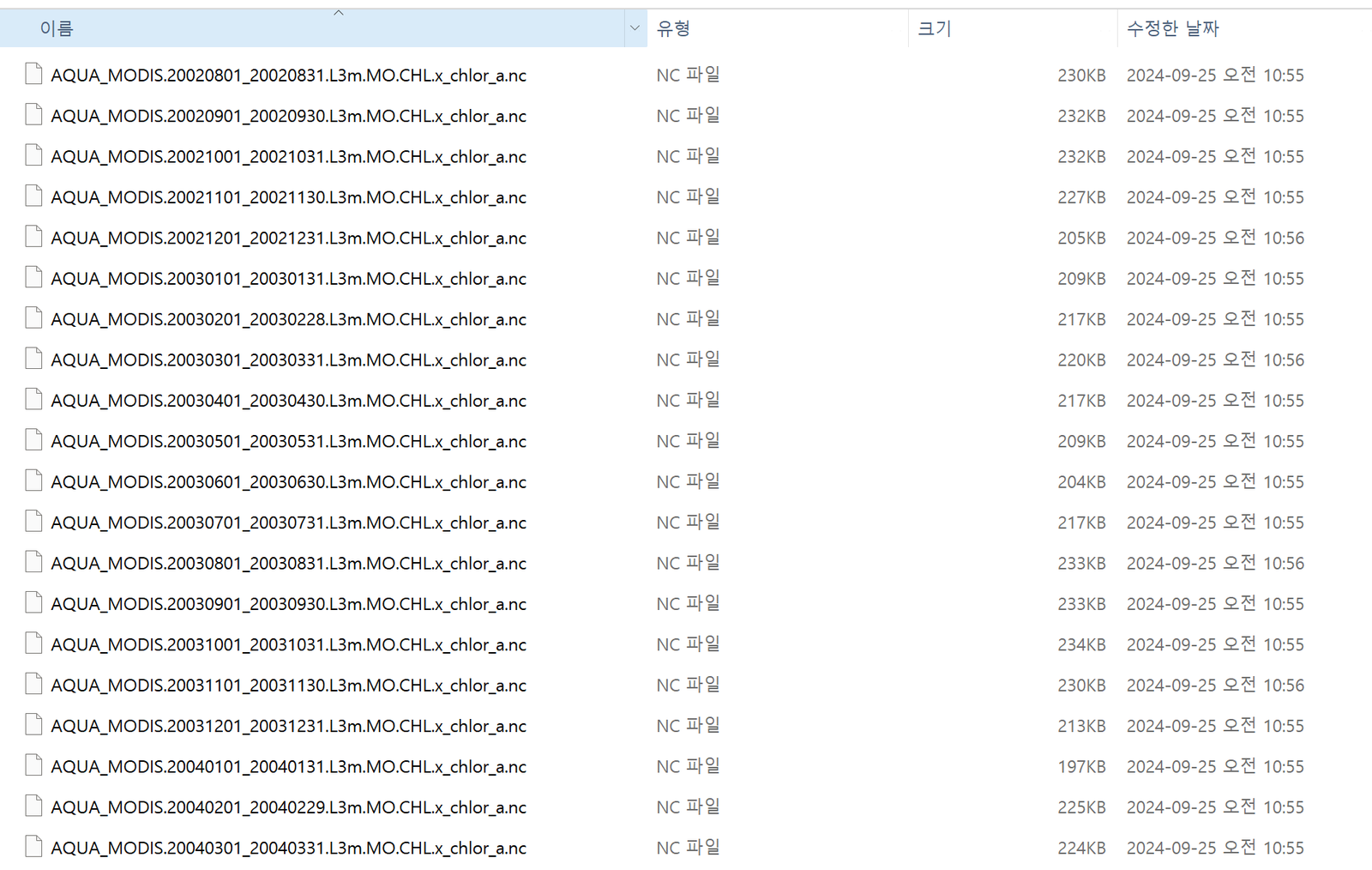
Downloaded data file - Example figure.
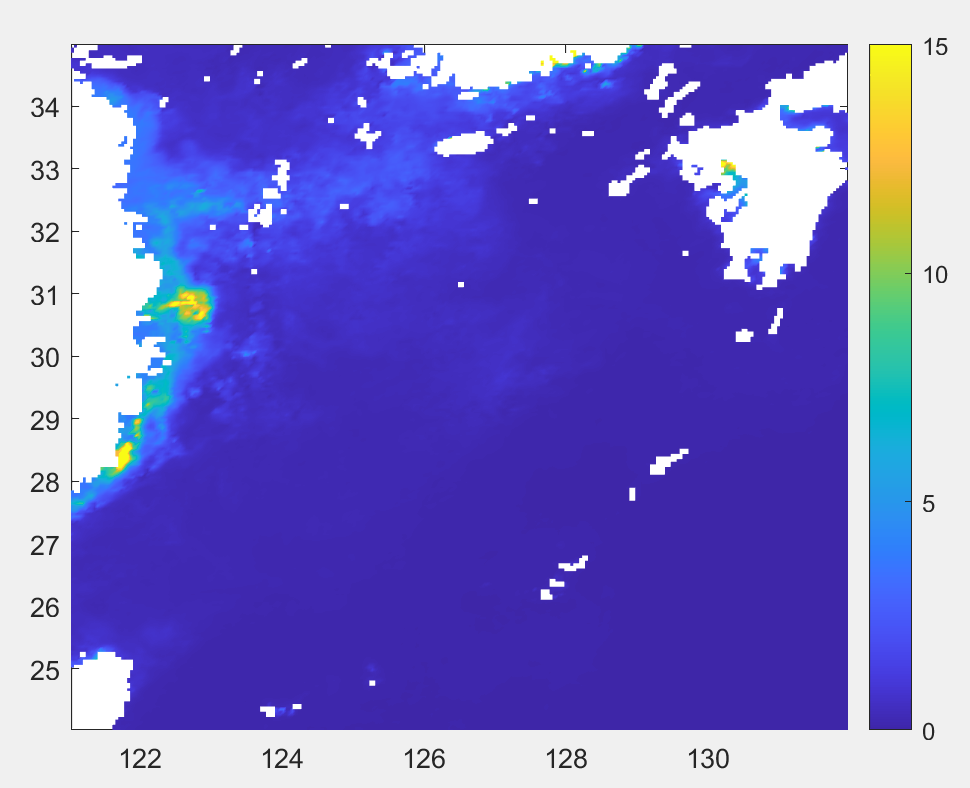
Example map of the extracted Chl-a