How to download ERA5 [2025.08.25]
Three ways to download ERA5 from the Climate Data Store (CDS): the web form, the CDS API in Python, and MATLAB. Create a free account at the Climate Data Store and log in first.
Example products:
- ERA5 hourly data on single levels from 1940 to present
- ERA5 monthly averaged data on single levels from 1940 to present
- Log in to the Climate Data Store.
-
Find the product, open Download, and select the options.
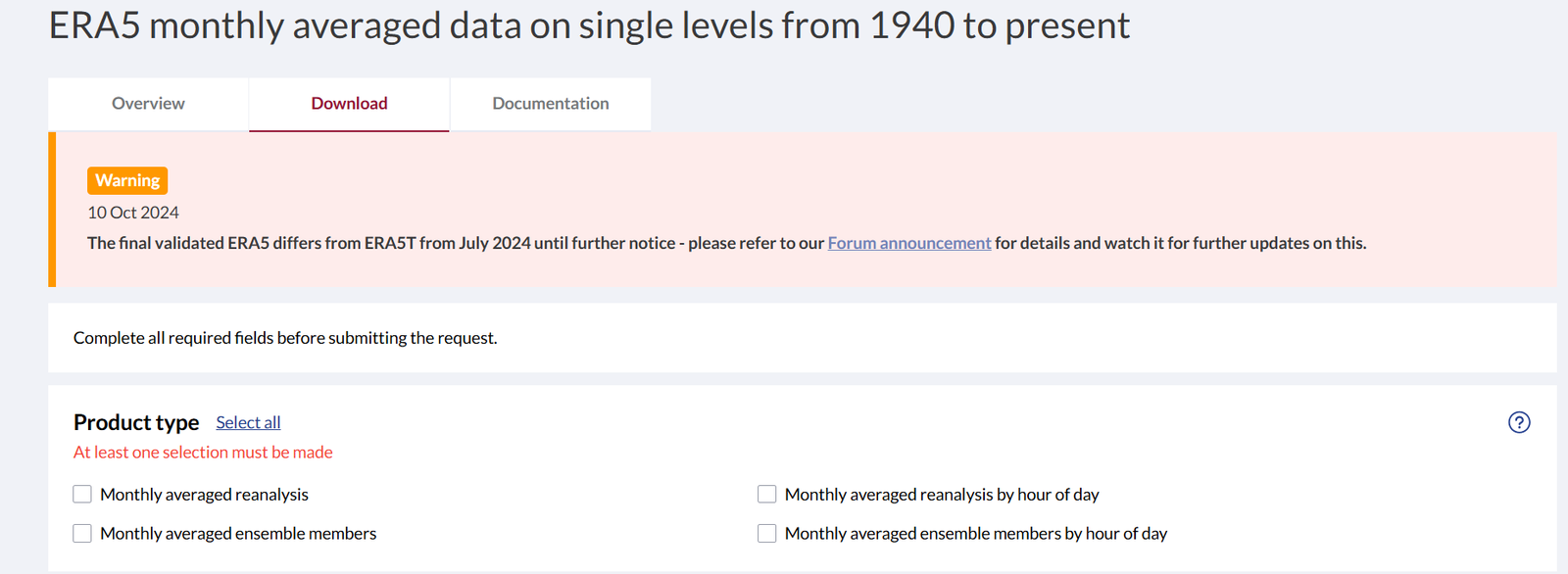
CDS download form -
Click Submit Form at the bottom once it becomes active. It may fail with an error; retrying usually works.
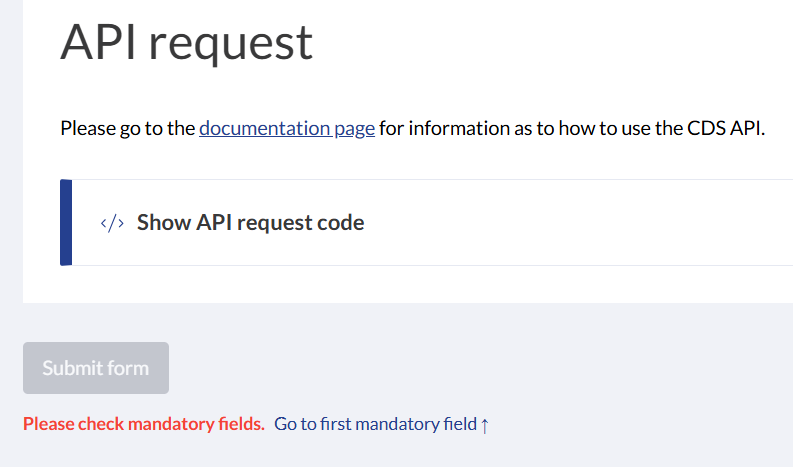
Submit Form button -
The processing time depends on the request size. Monthly u and v over the East China Sea for 2012 to 2023 took less than a minute. Wait until Status shows complete on the request page.
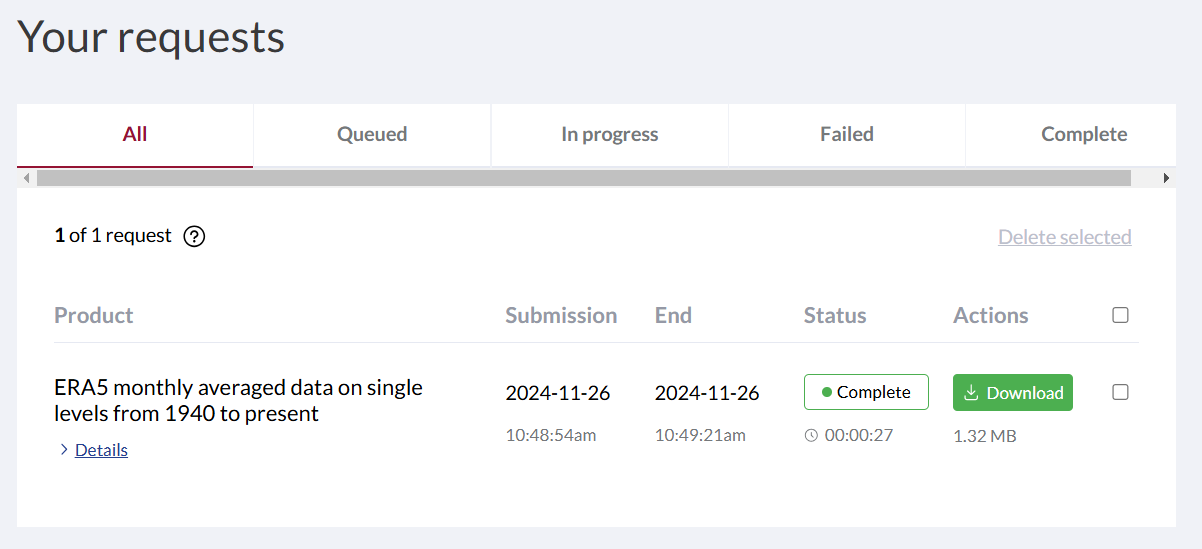
Request status page
After selecting all options for a product, the API request tab shows a ready-made Python script.
Paste it into your Python environment. Running it as is fails on the first line, because the cdsapi package must be set up first.
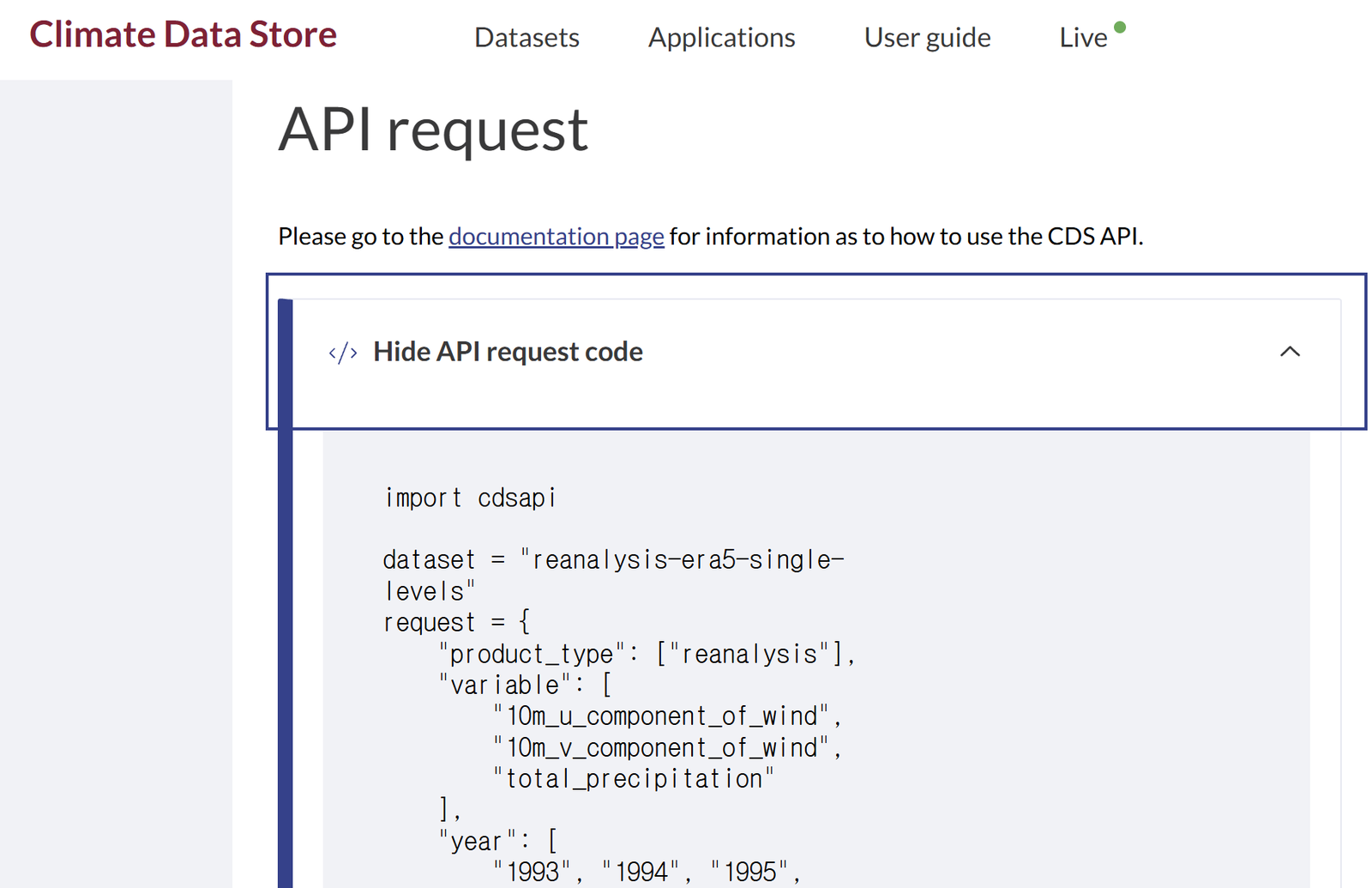
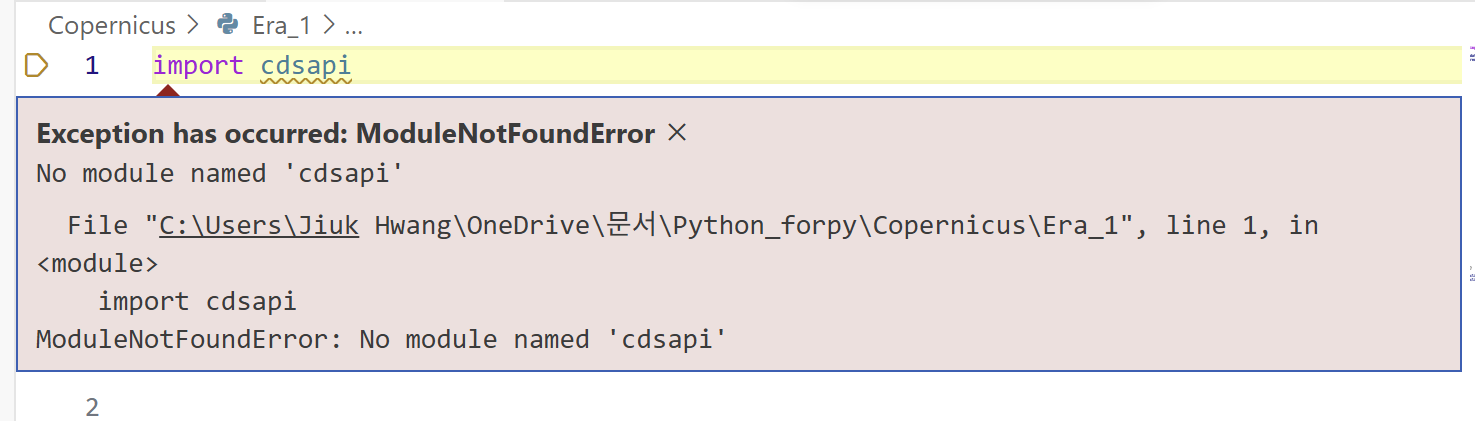
-
Install
cdsapi. With your Python virtual environment active, run: -
Set up the CDS API key. The package alone cannot download anything; the API key identifies your account.
- Register on the Copernicus Climate Change Service (C3S) website.
-
After logging in, open your profile page to find the API key.
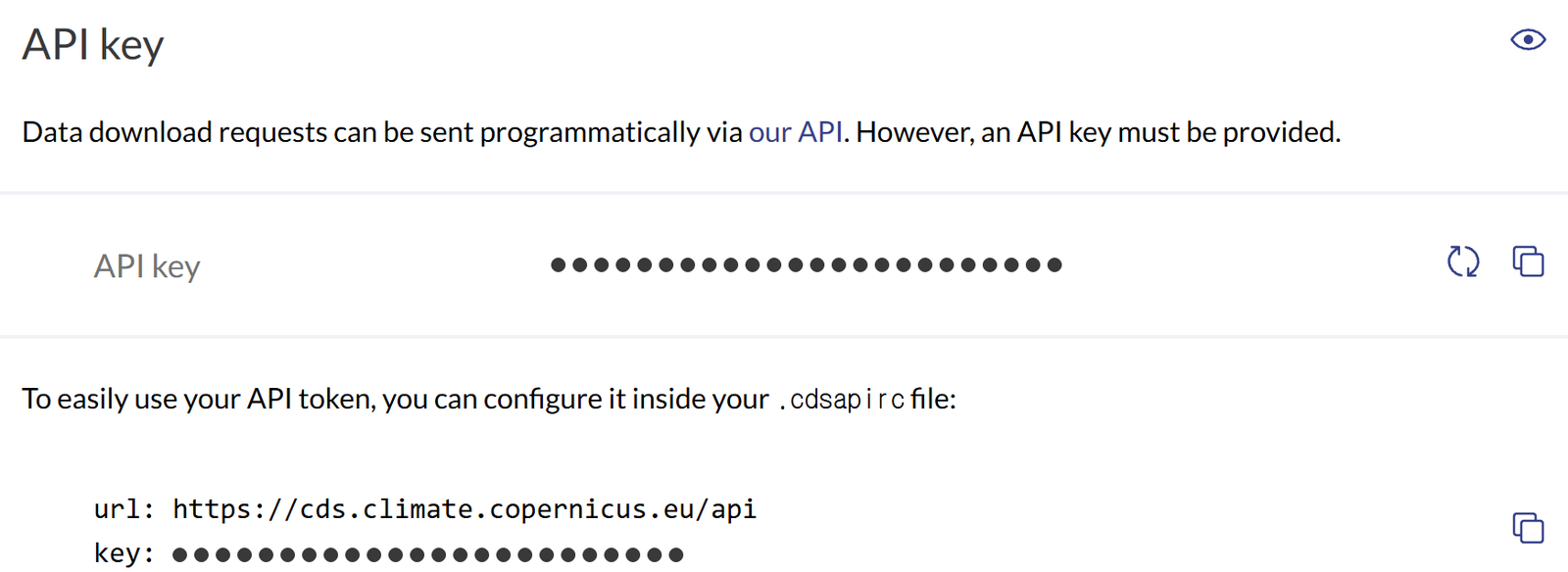
API key on the CDS profile page -
Create a file named
.cdsapircin your home directory (~or%USERPROFILE%, that isC:\Users\<user>on Windows) and paste the URL and your personal API token shown on the profile page:The simplest way is to create a new text file, fill it in, and rename it, removing the
.txtextension. If the extension is not shown in the rename dialog, enable file name extensions in the Explorer view settings.
Explorer view settings (1) 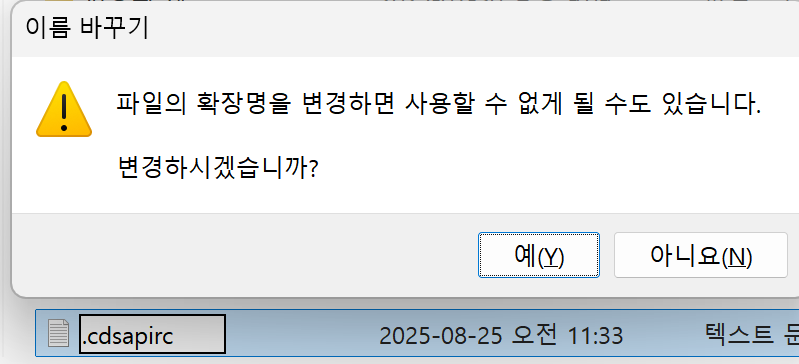
Explorer view settings (2) 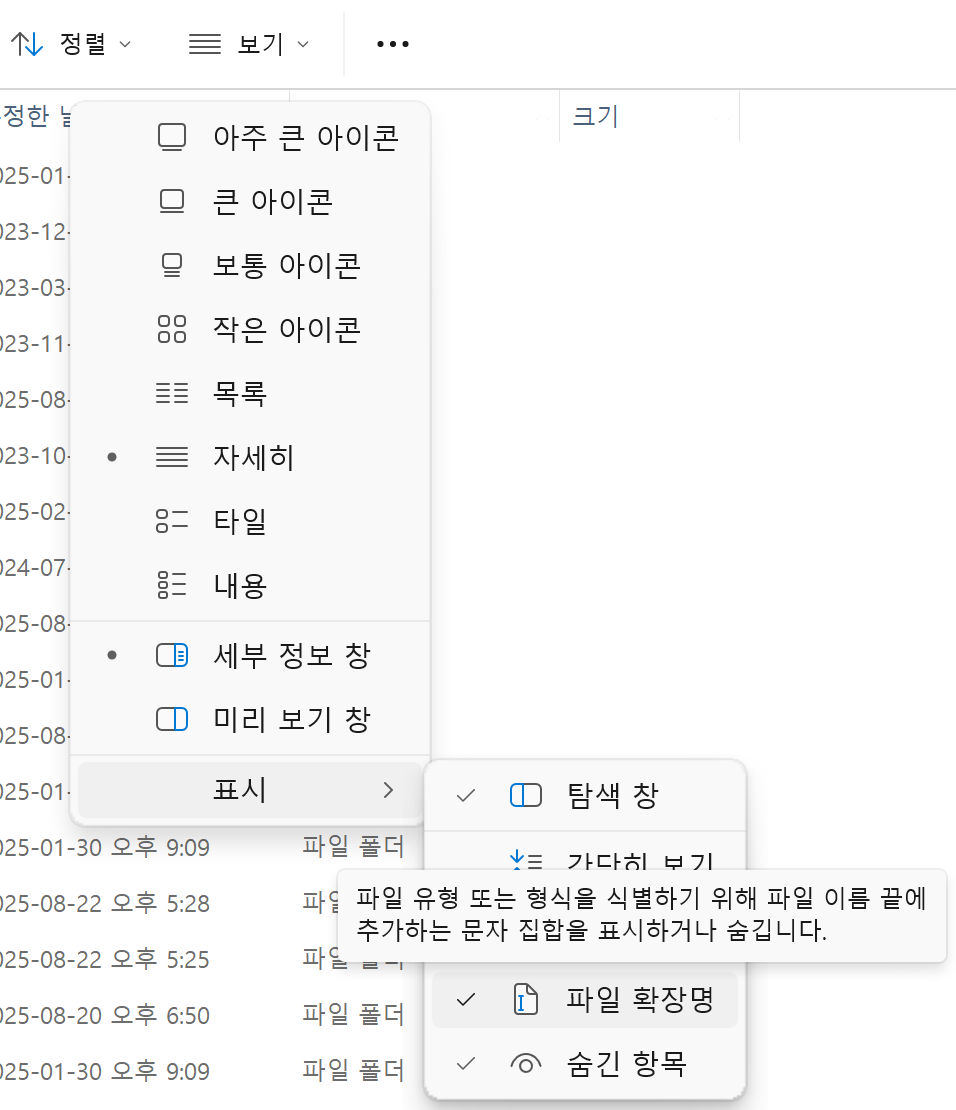
Renamed .cdsapirc file
-
Run the script. With
cdsapiinstalled and the key in place, the generated script downloads the ERA5 data. -
If
uv pip listshowscdsapibut the Jupyter interactive window still reportsNo module named 'cdsapi', Jupyter is probably running in a different environment. The environment name shown at the top right of the interactive window (hereforpy) must be the one where you installedcdsapi; if not, click it to change the kernel, and accept the prompt to installipykernel.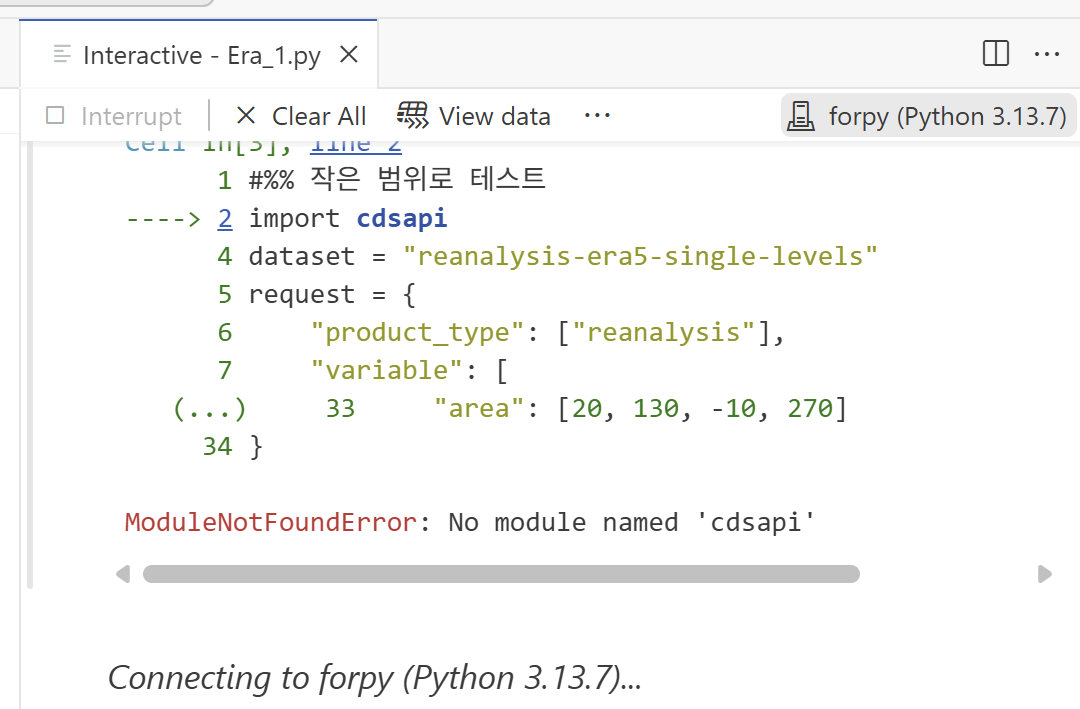
Selecting the kernel in the Jupyter interactive window
When .cdsapirc is not read
A colleague suggested passing the URL and key directly in the code instead of relying on the .cdsapirc file.
import cdsapi

url= ' '
key= ' '

dataset = "reanalysis-era5-single-levels"
request = {
    "product_type": ["reanalysis"],
    "variable": [
        "10m_u_component_of_wind",
        "10m_v_component_of_wind",
        "total_precipitation"
    ],
    "year": [
        "1993"
    ],
    "month": [
        "01"
    ],
    "day": [
        "01"
    ],
    "time": [
        "00:00", "01:00", "02:00",
        "03:00", "04:00", "05:00",
        "06:00", "07:00", "08:00",
        "09:00", "10:00", "11:00",
        "12:00", "13:00", "14:00",
        "15:00", "16:00", "17:00",
        "18:00", "19:00", "20:00",
        "21:00", "22:00", "23:00"
    ],
    "data_format": "netcdf",
    "download_format": "unarchived",
    "area": [20, 130, -10, 270]
}

client = cdsapi.Client(url=url, key=key)
client.retrieve(dataset, request).download()
Climate Data Store Toolbox for MATLAB (File Exchange)
Downloading with the CDS Toolbox on the website (discontinued)
The browser-based CDS Toolbox is no longer available. The steps are kept for reference.
- Log in and set the options for the product (one variable at a time is recommended: with the old link, two or more variables produced a warning and the downloaded file contained only one). The links refer to ERA5 hourly data on single levels from 1940 to present: new link · old link (closed)
-
Click show Toolbox request at the bottom and copy the code.
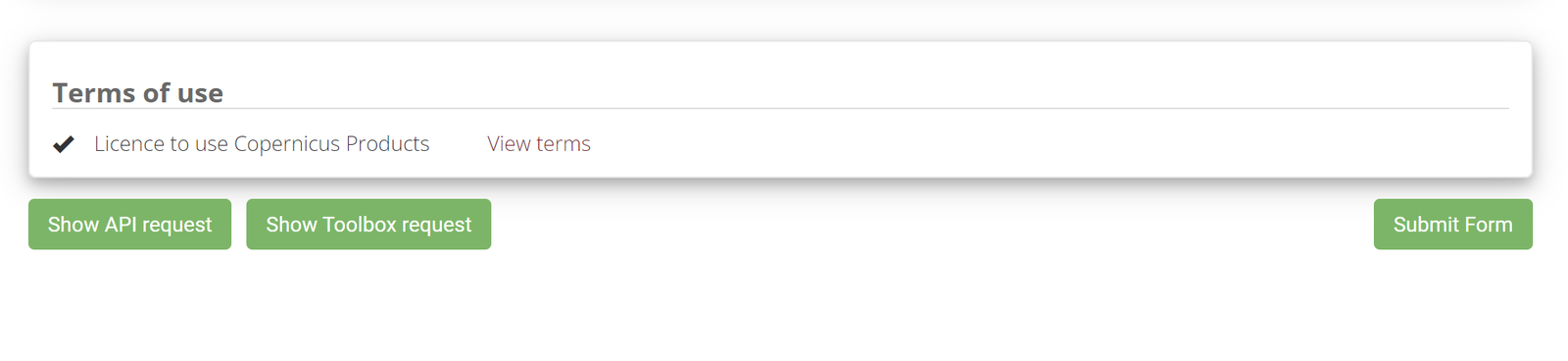
show Toolbox request -
Click Toolbox at the top.
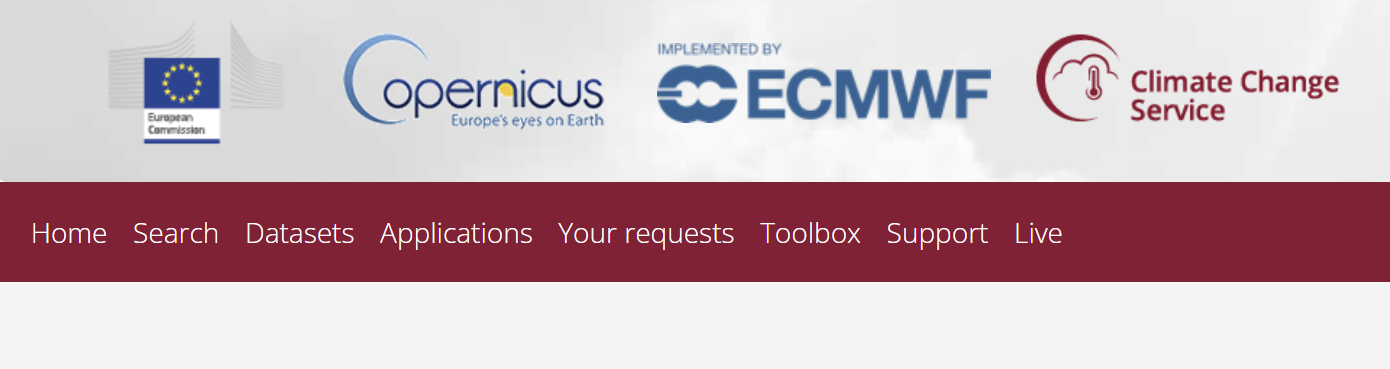
Toolbox menu -
Click Toolbox Editor.
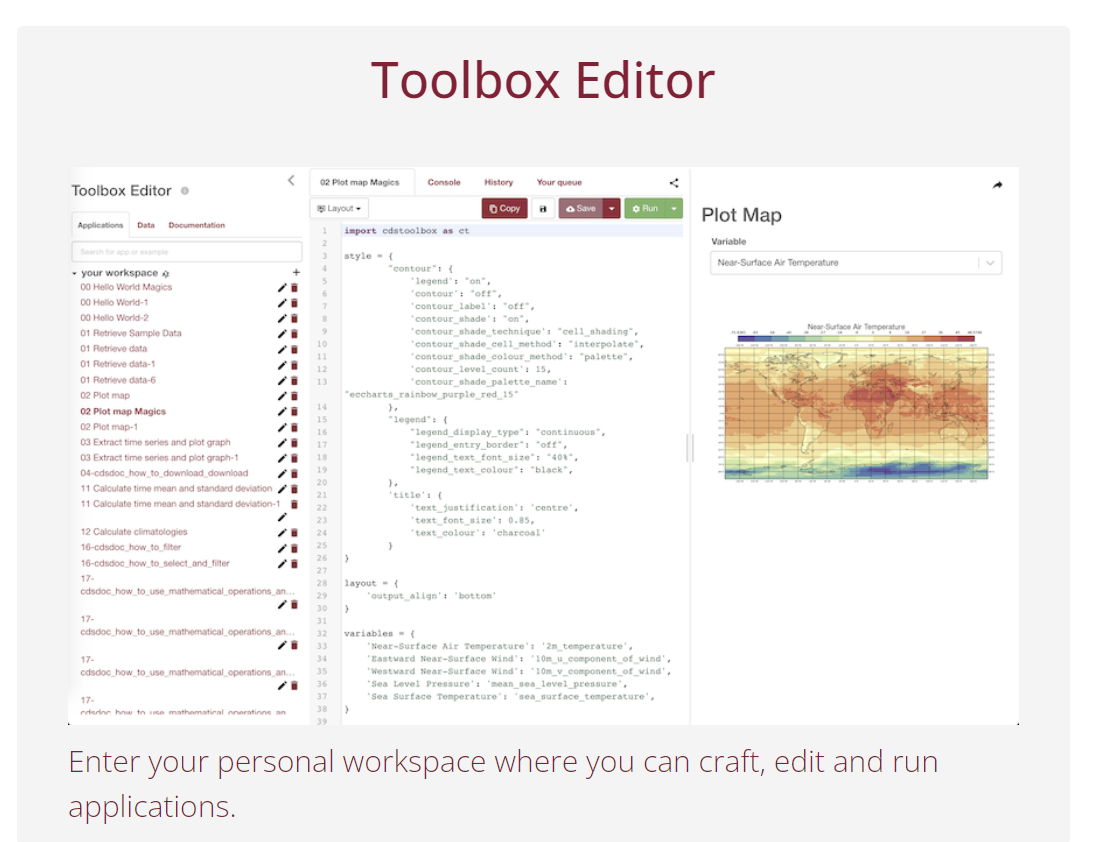
Toolbox Editor -
Create a new item in your workspace.
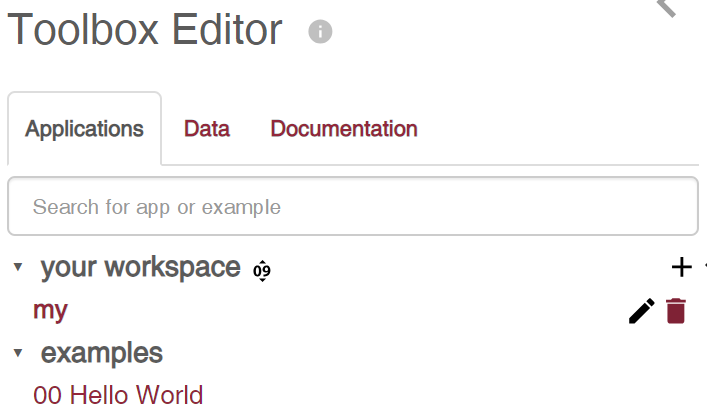
New workspace item -
Paste the code and click Run.
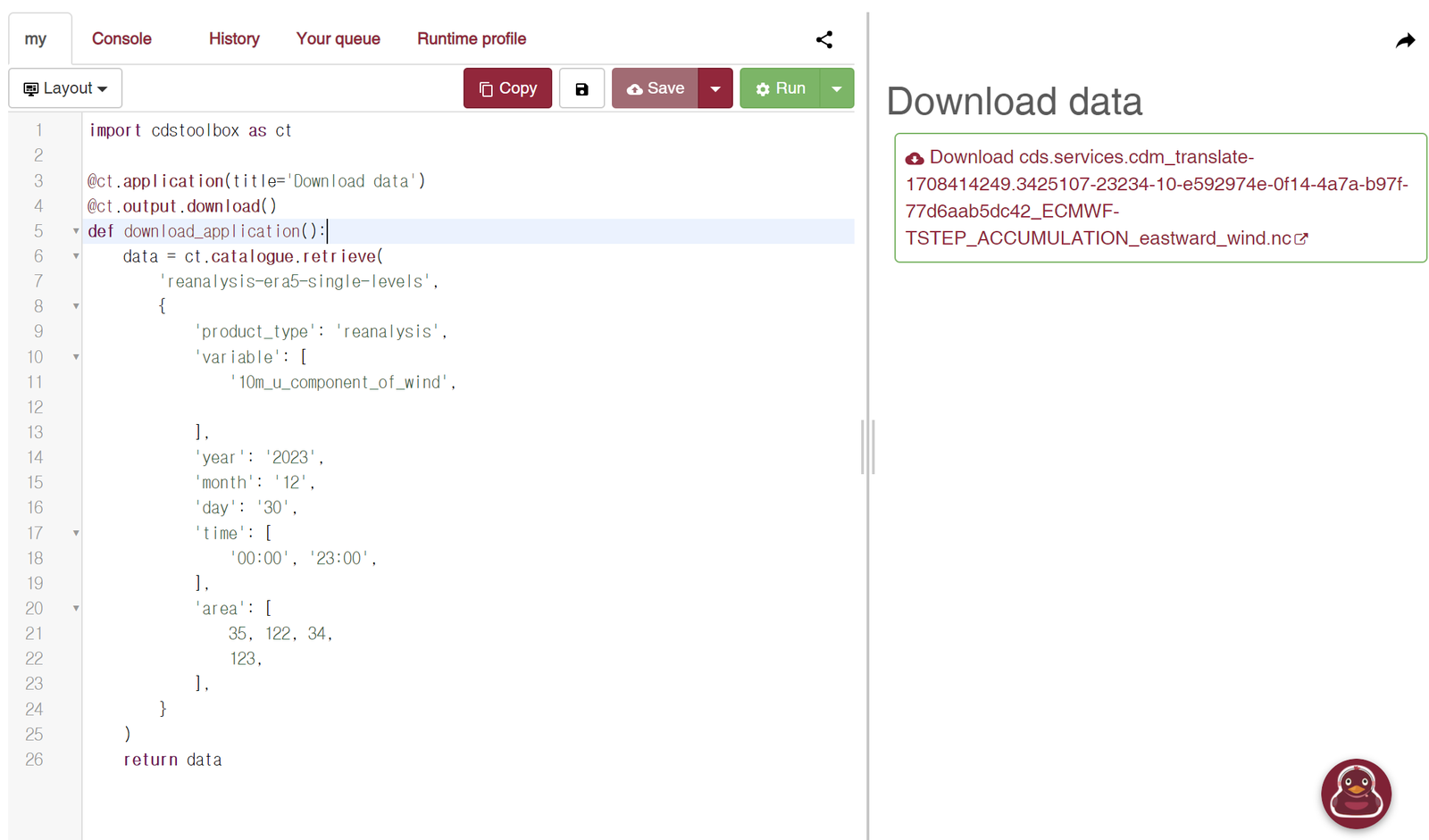
Run the request CDS Toolbox requestimport cdstoolbox as ct @ct.application(title='Download data') @ct.output.download() def download_application(): data = ct.catalogue.retrieve( 'reanalysis-era5-single-levels', { 'product_type': 'reanalysis', 'variable': [ '10m_u_component_of_wind', ], 'year': '2023', 'month': '12', 'day': '30', 'time': [ '00:00', '23:00', ], 'area': [ 35, 122, 34, 123, ], } ) return data